Toggle the visibility of labels on nodes and edges to reduce clutter and focus on the structure of the graph. Hide labels before sharing graph images that may contain sensitive information.
Choose from the following layout options to organize the graph visually:
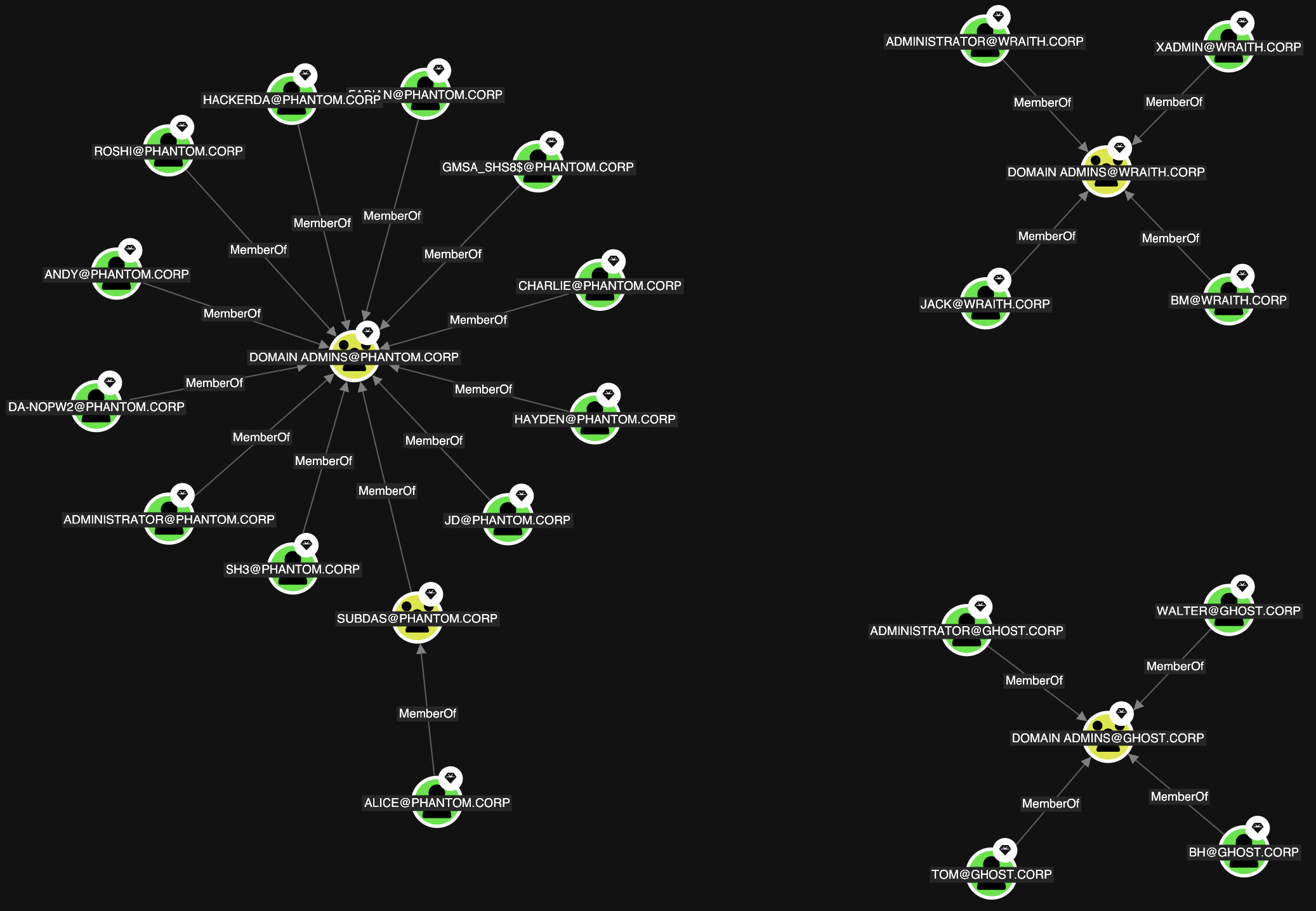
Organic
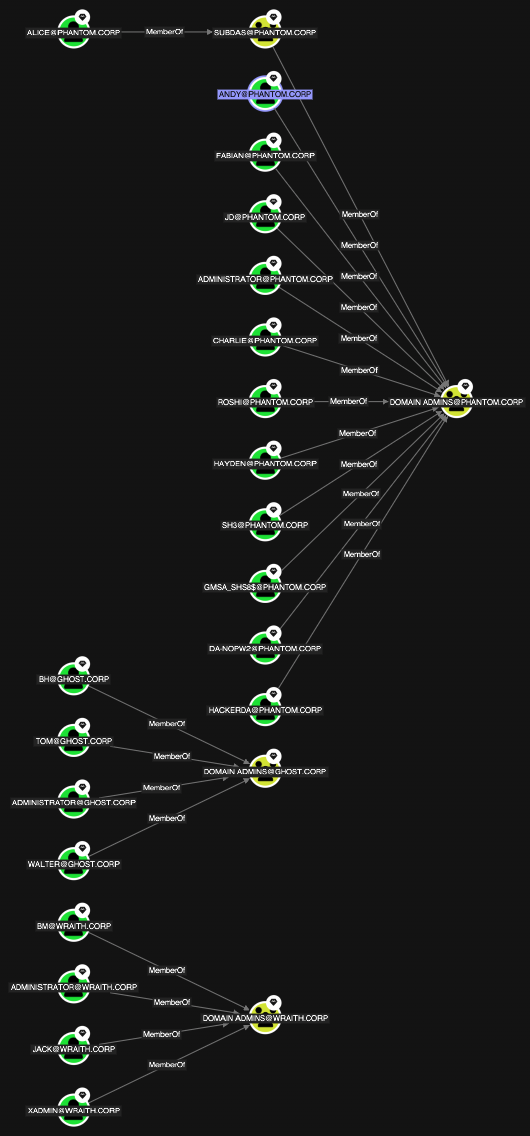
Stacked
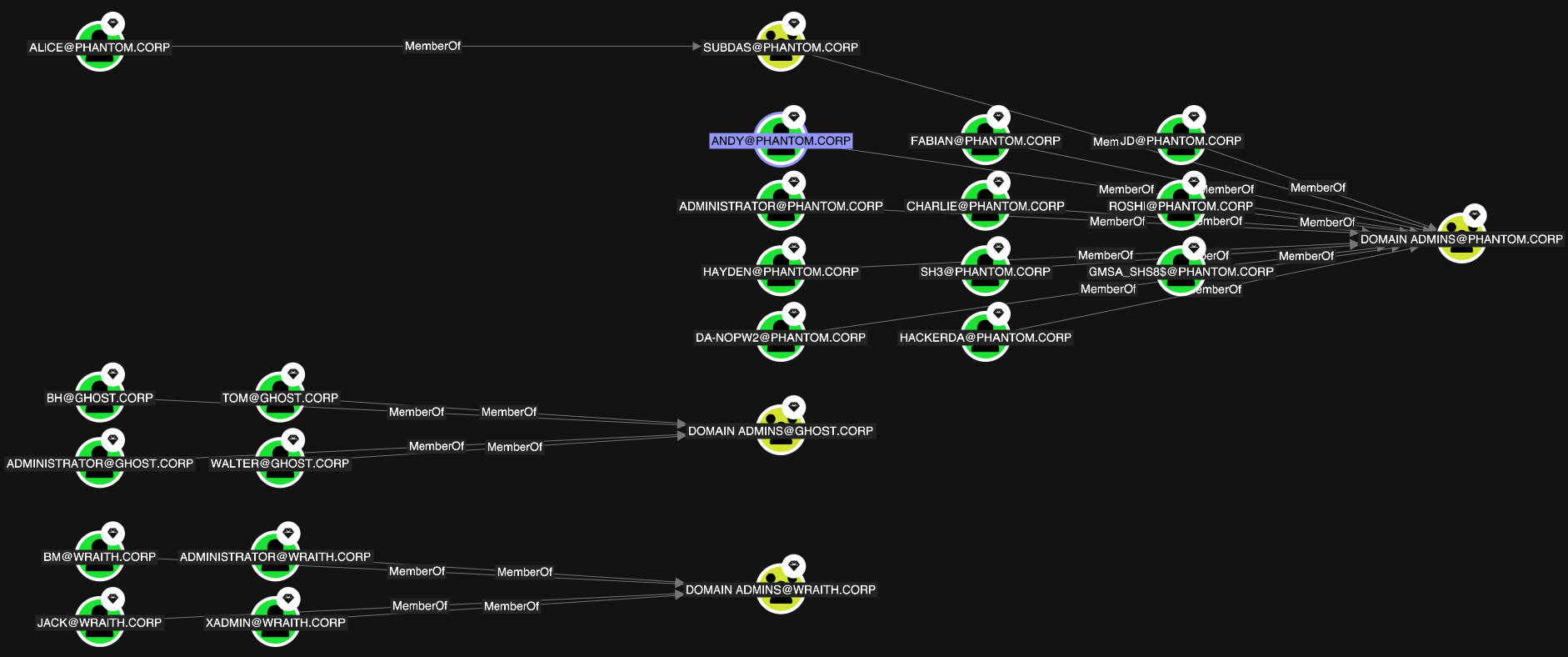
Sequential
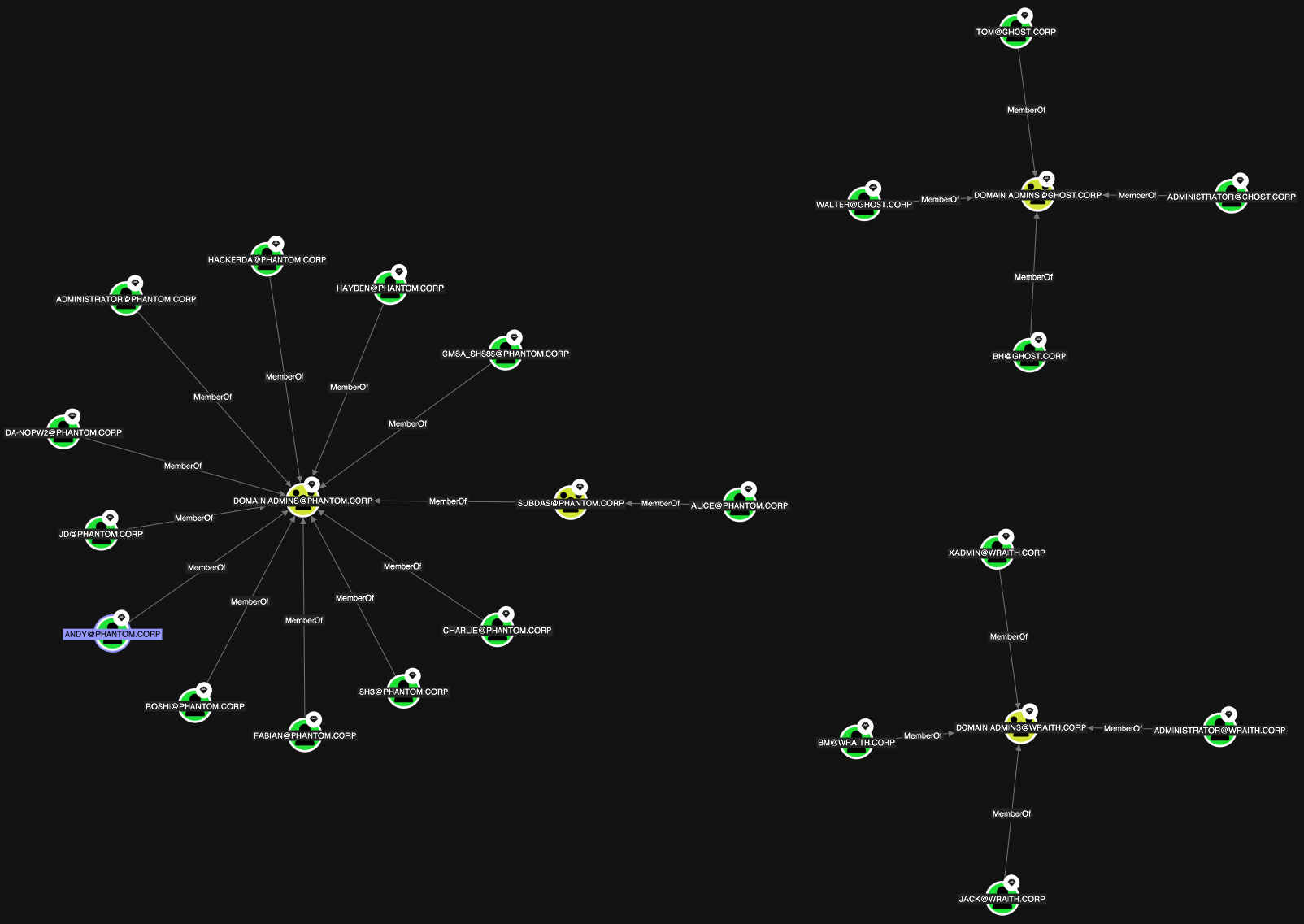
Standard
Table
Uses a force-directed layout algorithm to position objects based on their relationships, creating a natural and intuitive view of the graph.
The default layout for BloodHound Enterprise.Combines hierarchical layering with grid arrangement, organizing objects left to right in ranked layers while arranging multiple nodes within each layer in a structured grid pattern.
The default layout for BloodHound Community.Uses a hierarchical layout algorithm that organizes objects from left to right in ranked layers based on their relationships, ideal for visualizing directional paths and dependencies.
Uses a balanced force-directed algorithm that pulls connected nodes together while maintaining spacing between unconnected nodes, creating an evenly distributed layout.
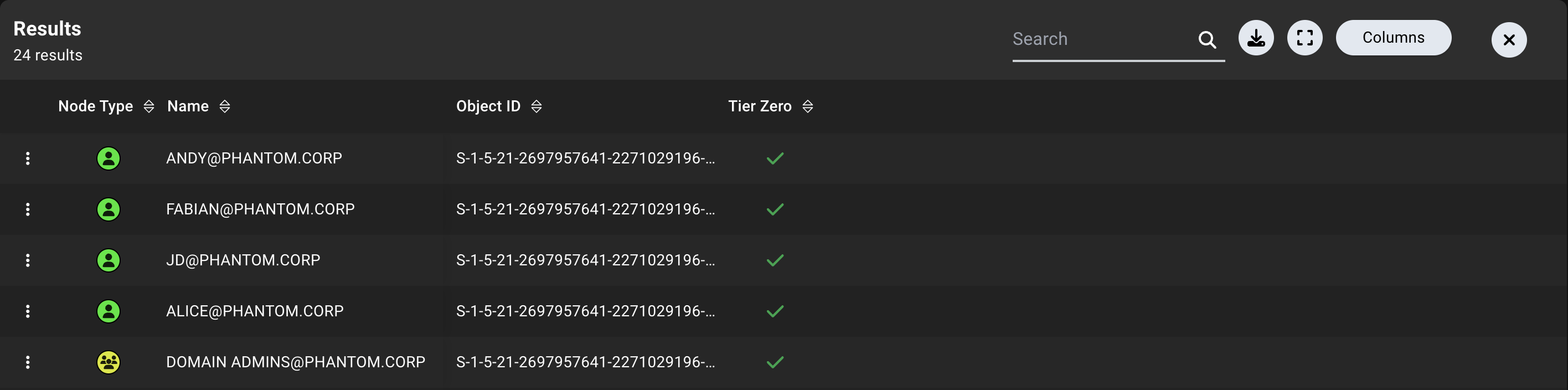
Displays objects in a tabular format, showing properties in rows and columns for easy comparison.The Table layout is available for Cypher searches only and is useful for filtering, sorting, and comparing large sets of nodes. When no layout is selected, BloodHound automatically opens this layout for Cypher results that return multiple nodes and no edges.
The table includes the following columns by default:
Column
Description
Node Type
The type of the object (node label)
Name
The name of the object
Object ID
The unique identifier of the object
Tier Zero
Indicates if the object is part of the Tier Zero privilege zone
Click the (ellipsis) icon in each row to access the context menu for that object.
Resize columns to view more or less information as needed by clicking and dragging the edges of the column dividers (or double-clicking the column dividers to auto-size).
The table layout provides the following options:
Search—Filter table rows by node name or object ID
Export—Select All Columns or Selected Columns to download the nodes as a CSV file for further analysis or sharing
Expand—Maximize the graph view to fill the screen for better visibility
Columns—Search, add/remove, sort, reorder, reset column size, reset defaults, and pin columns in the table layout
Change the direction in which the graph flows by selecting Down, Left, Right, or Up. The default direction is Right.This control is available only for the Stacked and Sequential layouts in BloodHound Enterprise.
Use the slider to adjust the horizontal distance between nodes. The slider ranges from 0 (Compact) to 10 (Spacious), with a default value of 5.This control is available only for the Stacked and Sequential layouts in BloodHound Enterprise.
Use the slider to adjust the vertical distance between nodes. The slider ranges from 0 (Compact) to 10 (Spacious), with a default value of 5.This control is available only for the Stacked and Sequential layouts in BloodHound Enterprise.
Open the menu and select JSON to download the current graph data as a JSON file. This control is available for all search methods and layouts when graph data is available.
Search the current graph results by node name or object ID. Enter a search term, then select a result to focus the graph on that node. This control searches the current results; it does not run a new search from the Search, Pathfinding, or Cypher tabs.When the Table layout is open, use the table’s Search field to filter its rows instead.


 Use the graph controls at the bottom of the Explore page to adjust the graph’s appearance, export graph data, and search the current results.
 Uses a force-directed layout algorithm to position objects based on their relationships, creating a natural and intuitive view of the graph.