 Monitor collection activity and processing status to confirm uploads, understand analysis timing, and troubleshoot failures. The status concepts in this guide apply to both collector client jobs on the Finished Jobs Log page and manual uploads on the File Ingest page.
BloodHound Enterprise uses separate status indicators for tenants and jobs. These statuses operate independently and are not directly synchronized. This means you may observe scenarios where job status and tenant status appear out of sync, which is expected behavior.
Monitor collection activity and processing status to confirm uploads, understand analysis timing, and troubleshoot failures. The status concepts in this guide apply to both collector client jobs on the Finished Jobs Log page and manual uploads on the File Ingest page.
BloodHound Enterprise uses separate status indicators for tenants and jobs. These statuses operate independently and are not directly synchronized. This means you may observe scenarios where job status and tenant status appear out of sync, which is expected behavior.
- Tenant status reflects datapipe ingestion and analysis progress. The datapipe performs its own processing and reflects status independent of job status.
- Job status reflects the collector client and file ingest workflows. Jobs notify the datapipe when certain actions are complete.
Tenant Status
Tenant status (also known as datapipe status) displays in the top-right corner of the BloodHound Enterprise user interface. This status reflects the current state of data processing for your tenant.With Variable Analysis Mode, analysis triggered by Privilege Zone changes still appears as Analyzing in tenant status.The tenant status does not distinguish between a full analysis run and a variable analysis run that starts at Tagging.Scheduled analysis (a SpecterOps-managed feature) always runs a full analysis.
Job Status
The following statuses apply to both the Finished Jobs Log and File Ingest pages.
The following state diagram illustrates the possible transitions between job statuses:
Finished Jobs Log
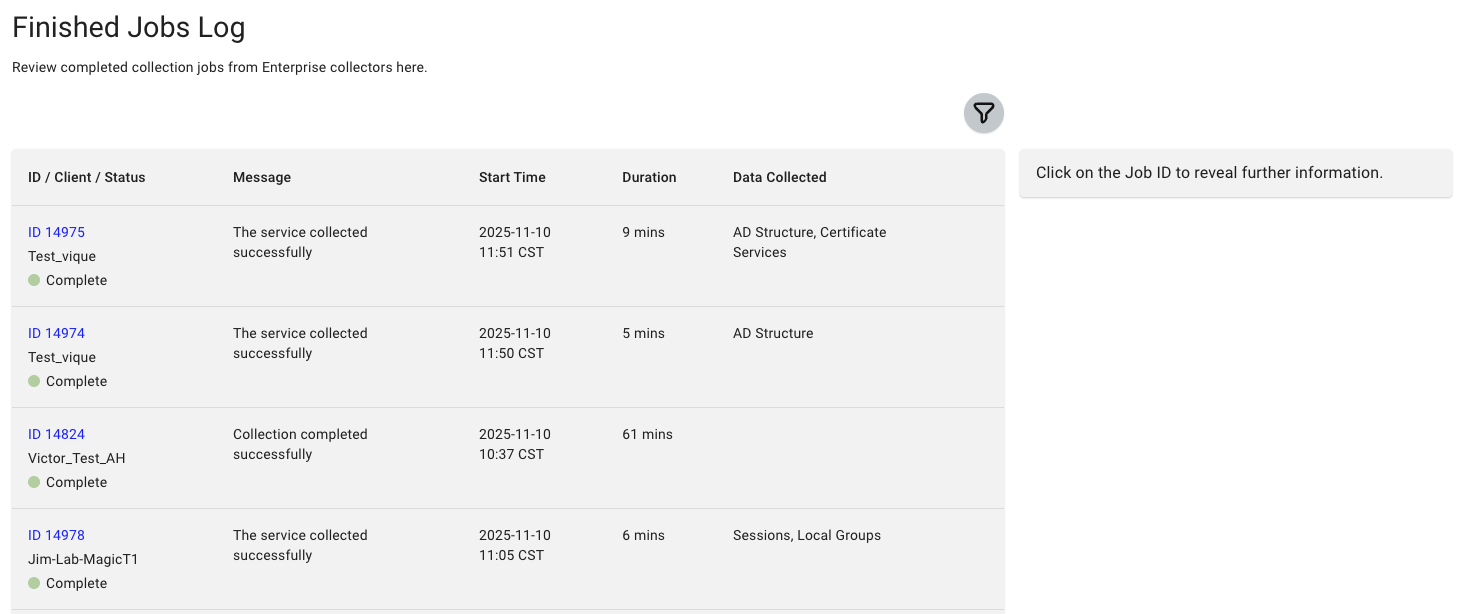
Data collection clients log completed jobs to the Finished Jobs Log, which provides details about all collection activities that a client performs. This log is essential for monitoring and troubleshooting data collection jobs. The Finished Jobs Log page provides a detailed log of each collection job, including:For clients on scheduled collection, jobs can display an Analyzing status while the tenant status remains Idle. When the scheduled collection time arrives, the tenant status changes to Ingesting, and analysis begins automatically after the collection completes successfully.
1
View the Finished Jobs Log
In the left menu, click Administration > Finished Jobs Log.
2
Open the Details panel
Click the specific job ID in the table to open the Details panel.
3
Review the job details
In the Details panel, review the job details for the selected ID. Look for any errors or warnings that may indicate issues during the collection process.The Details panel displays the following information for each job ID: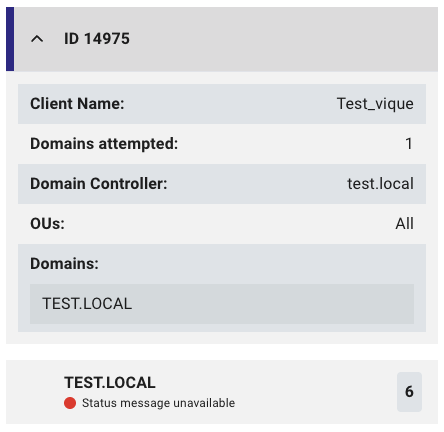
File Ingest
When you perform an ad-hoc data collection by uploading a SharpHound output .zip file, ingestion process details are logged on the File Ingest page. You can use this page to monitor ingestion and ensure successful data processing. It shows the status of each file ingest operation, which can be helpful for viewing data upload history or troubleshooting data ingestion issues. The File Ingest page provides a detailed log of each ingestion attempt, including:1
View File Ingest logs
In the left menu, click Administration > File Ingest.
2
Open the Details panel
Click the specific file ingest ID in the table to open the Details panel.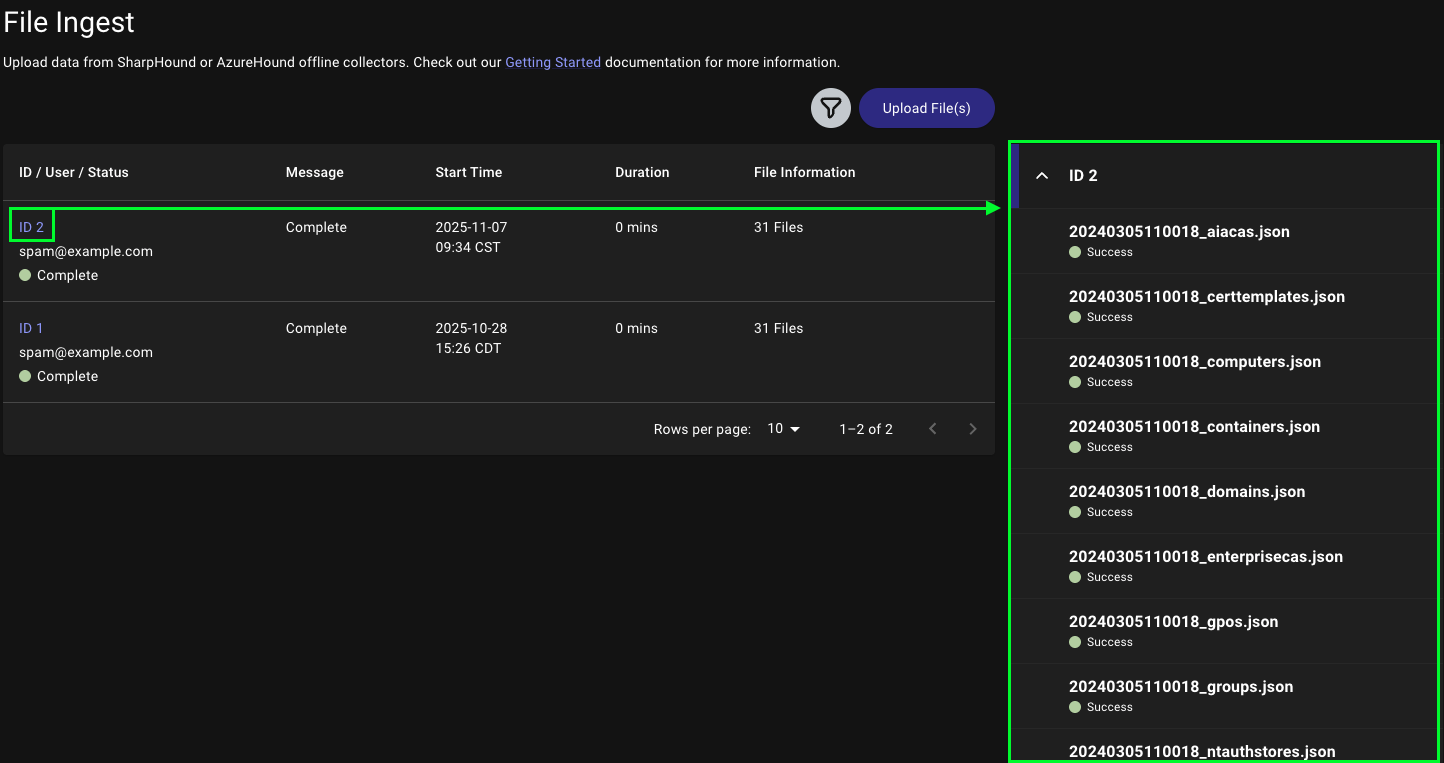
3
Review the log entries
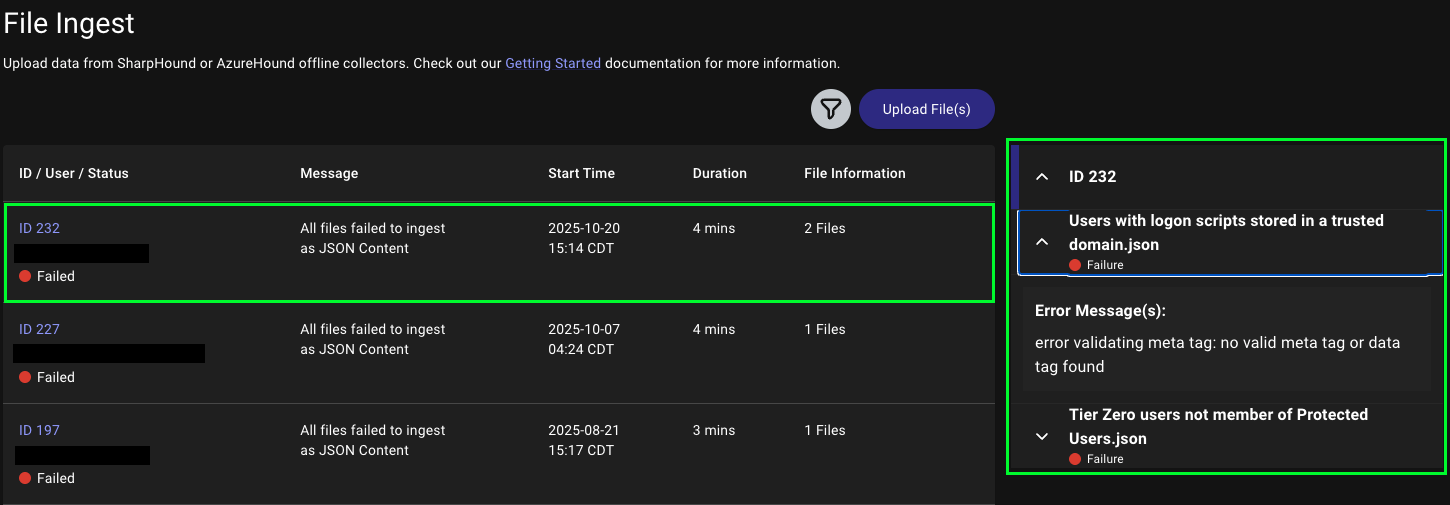
In the Details panel, review the log entries for the selected ID. Look for any errors or warnings that may indicate issues during the ingestion process.If a file failed to ingest due to format issues or data corruption, the log provides specific error messages to help you diagnose the problem.For example, the following log indicates a failed ingestion due to a schema validation error: